

There’s a reason people still love traditional scrapbooking. The scattered photos across the desk, ticket stubs tucked into notebook pages, half-used rolls of washi tape somehow ending up everywhere — even the chaos feels personal. But the reality is a little less romantic once the supplies start piling up. Paper gets expensive, stickers disappear overnight, and traveling with an entire scrapbook setup quickly becomes a hassle. Digital scrapbooking on an iPad solves a lot of that. You keep the creativity, lose the clutter, and gain things physical notebooks never could — unlimited pages, instant photo imports, and the freedom to undo every bad design decision in seconds.
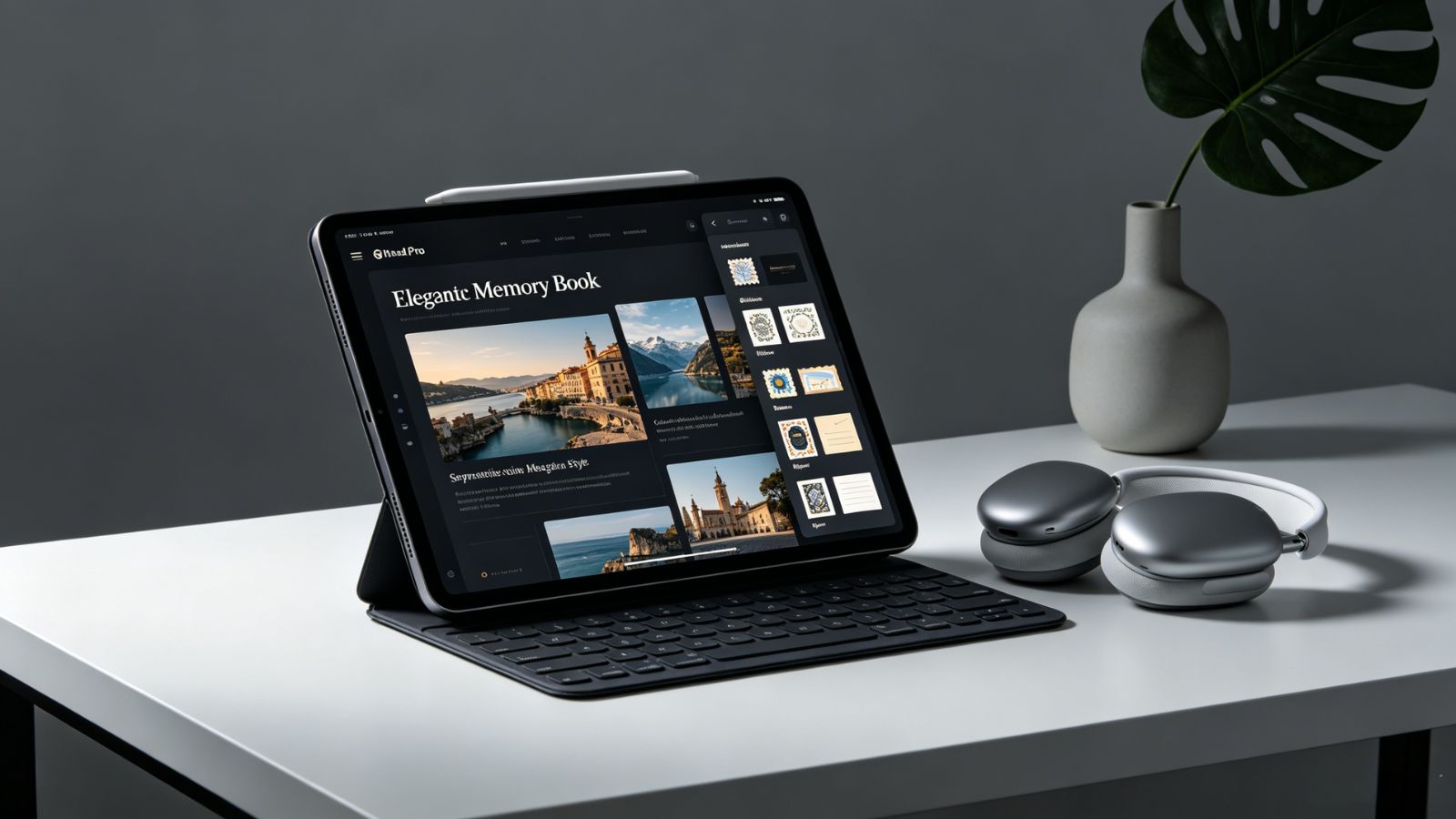
The problem is that most apps still don’t understand what scrapbookers actually want. Some feel like sterile productivity tools pretending to be creative spaces. Others force every photo into rigid little templates that strip away the messy, handmade charm people love about memory-keeping in the first place. A good scrapbook app needs room to breathe: handwriting, layering, freeform layouts, quick media drops, little doodles in the margins. After testing a range of popular iPad apps with an Apple Pencil in hand, a few finally stood out as tools that feel genuinely creative instead of painfully corporate.
Goodnotes 6 nails something most apps completely miss: it actually feels personal.
The moment you start writing with the Apple Pencil, the app stops feeling like software and starts feeling like a notebook you’ve slowly filled over time. Handwriting flows naturally, photos can be dropped anywhere on the page, and nothing forces you into rigid layouts. You can scribble beside a picture, layer stickers over handwritten notes, draw arrows between memories, or leave awkward empty spaces just because it looks right.
That freedom matters.
A lot of scrapbook apps accidentally feel like presentation software. Goodnotes feels messy in the best possible way — more like sitting on your bedroom floor surrounded by photos and markers.
The handwriting engine is also ridiculously polished. Pen pressure feels responsive, strokes smooth out naturally, and handwritten notes become searchable later, which still feels slightly magical when you’re digging through old journals months afterward.
It’s not perfect, though. Photo editing tools are fairly basic compared to design-focused apps, and audio integration still feels clunky. But for people who want a true handwritten scrapbook experience on an iPad, this is the one that keeps pulling people back.
Excellent Apple Pencil handwriting experience
Totally flexible page layouts without restrictive grids
Huge ecosystem of planner templates, stickers, and scrapbook assets
Handwritten notes become searchable
Limited built-in photo editing tools
Audio embedding still feels awkward
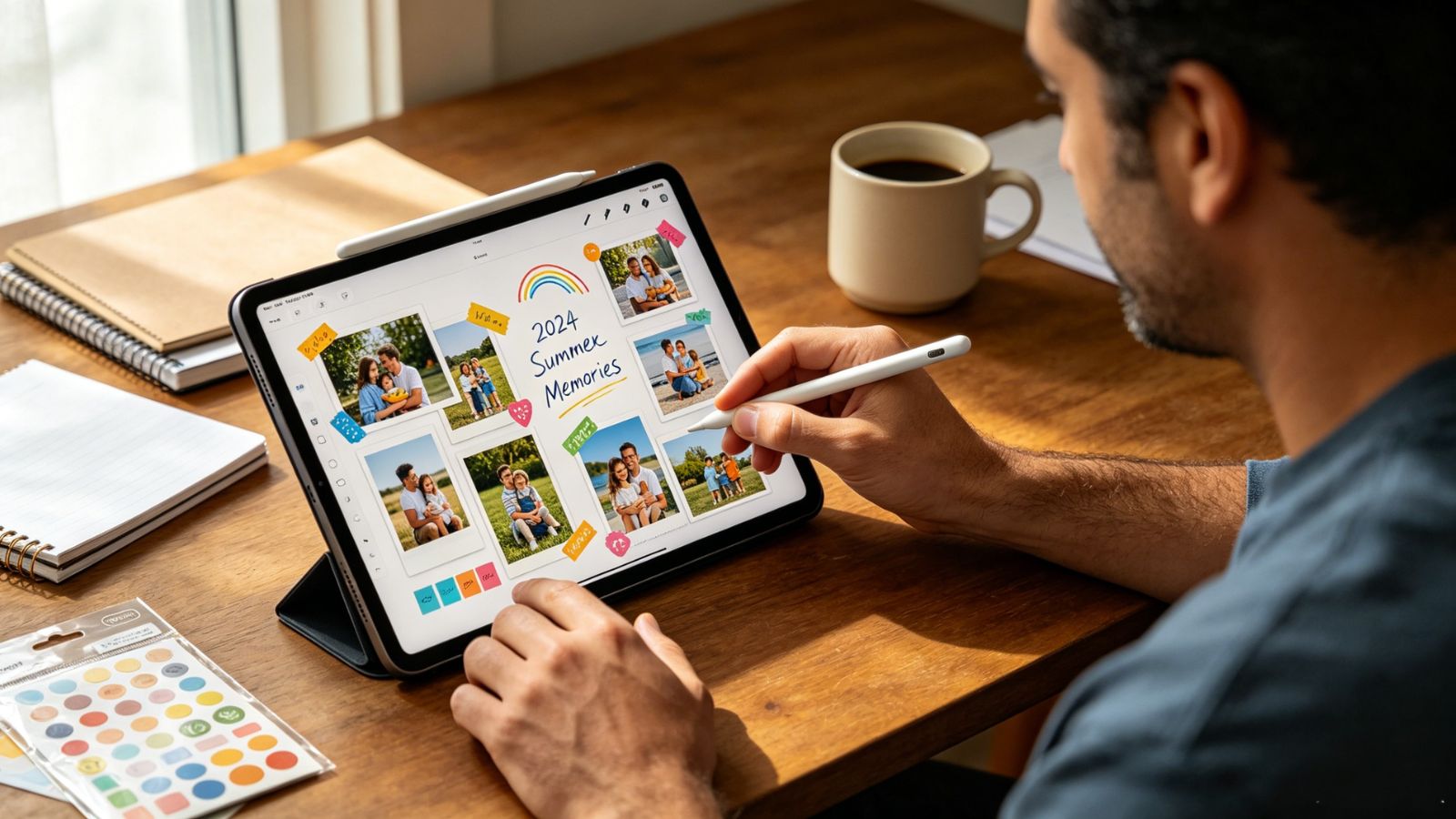
Paper is pure creative energy.
Everything about it feels tactile — the way photos slide onto the page, the watercolor brushes bleeding around edges, the smooth page-flipping animations between journals. You can throw images onto a canvas, rotate them casually, overlap sketches, scribble quick thoughts in the margins, and build pages that feel loose and organic instead of carefully engineered.
That’s its biggest strength: it never overwhelms you with tools.
A lot of design apps open with giant menus and dozens of tiny buttons that instantly kill creative momentum. Paper strips all that away. The interface stays almost invisible, leaving you alone with the canvas and the Apple Pencil.
The watercolor tools deserve special mention too. They look genuinely beautiful for scrapbook-style pages, especially when blending around photos or handwritten notes.
The tradeoff is functionality. If you prefer typing long journal entries or organizing pages with precision, Paper starts feeling limited pretty quickly. And for the subscription price, the cloud syncing features could honestly be much stronger.
Still, few apps capture that “creative mess on the floor” feeling better than this one.
Gorgeous minimalist interface
Watercolor and marker brushes feel natural and expressive
Extremely intuitive collage-style workflow
Reviewing journals feels immersive and satisfying
Weak text formatting tools
Subscription feels expensive for the feature set
Not everyone wants to start with a blank canvas.
Some people just want their scrapbook to look polished without spending two hours arranging photos and fonts manually. That’s where Canva dominates.
The template library is massive. Search “travel scrapbook,” “baby memory book,” or “vintage journal,” and within seconds you’ll have professionally designed layouts ready to customize. Drag in your photos, swap colors, tweak text, done.
Honestly, it’s almost unfairly easy.
Canva also removes a lot of the frustrating technical work behind the scenes. Alignment snaps into place automatically. Elements resize cleanly. Background removal tools work with almost no effort. Even people with zero design experience can make pages that look professionally assembled.
The downside is that Canva feels more like graphic design software than a true journal. Handwriting support is weak, Apple Pencil input feels stiff, and the whole experience depends heavily on staying online. Once your internet connection gets shaky, the magic fades fast.
But for speed and convenience? Few apps come close.
Massive library of templates and design assets
Extremely beginner-friendly
Excellent cross-device syncing
Strong free version with plenty of useful tools
Limited handwriting and Apple Pencil optimization
Heavy reliance on internet connectivity
Day One approaches memory-keeping differently.
Instead of focusing on creative layouts, it focuses on documenting life beautifully and automatically. Drop in a photo, and the app quietly records where you were, the weather that day, the time, even movement data from your device. Over time, your journal becomes less of a scrapbook and more of a detailed timeline of your life.
That sounds small until you revisit an entry from three years ago and suddenly remember exactly where you were standing when you took the photo.
The multimedia support is excellent too. Voice recordings, videos, photos, text — it handles everything smoothly while keeping the interface clean and calm. The “On This Day” feature is especially addictive, resurfacing old memories in a way that feels surprisingly emotional.
Privacy is another huge selling point. Day One leans heavily into encryption and security, which matters when your journal contains genuinely personal moments.
Where it falls short is creative freedom. If you want sprawling scrapbook layouts with layered images and handwritten doodles everywhere, this isn’t really built for that. It’s structured, chronological, and intentionally organized.
For daily journaling, though, it’s fantastic.
Beautiful chronological memory timeline
Excellent support for photos, audio, and video
Strong privacy and encryption features
“On This Day” flashbacks are genuinely fun to revisit
Limited freeform layout flexibility
Best features sit behind a subscription
Project Life is built for people who want results quickly.
Instead of starting from scratch, the app uses fixed pocket-style layouts inspired by traditional physical scrapbooking systems. You pick a template, tap a slot, insert a photo, then drop text or decorative cards into the remaining spaces. That’s basically the workflow.
Simple. Fast. Weirdly satisfying.
This structure removes the “blank page panic” that stops a lot of people from scrapbooking consistently. You don’t waste an hour deciding where everything should go because the layout decisions are already handled for you.
For documenting vacations, birthdays, family albums, or year-end memory books, that efficiency becomes incredibly valuable. You can build polished pages in minutes instead of turning every scrapbook spread into a full design project.
The downside is obvious: flexibility barely exists. You can’t freely drag elements around or build chaotic layered collages the way you can in Goodnotes or Paper. The interface also feels a little dated compared to newer creative apps.
Still, if your priority is preserving memories quickly instead of endlessly tweaking layouts, Project Life remains one of the easiest tools around.
Extremely fast page-building workflow
Great for printing physical photo books later
Beginner-friendly structured layouts
Affordable add-on packs and templates
Very limited layout freedom
Interface feels older than competing apps
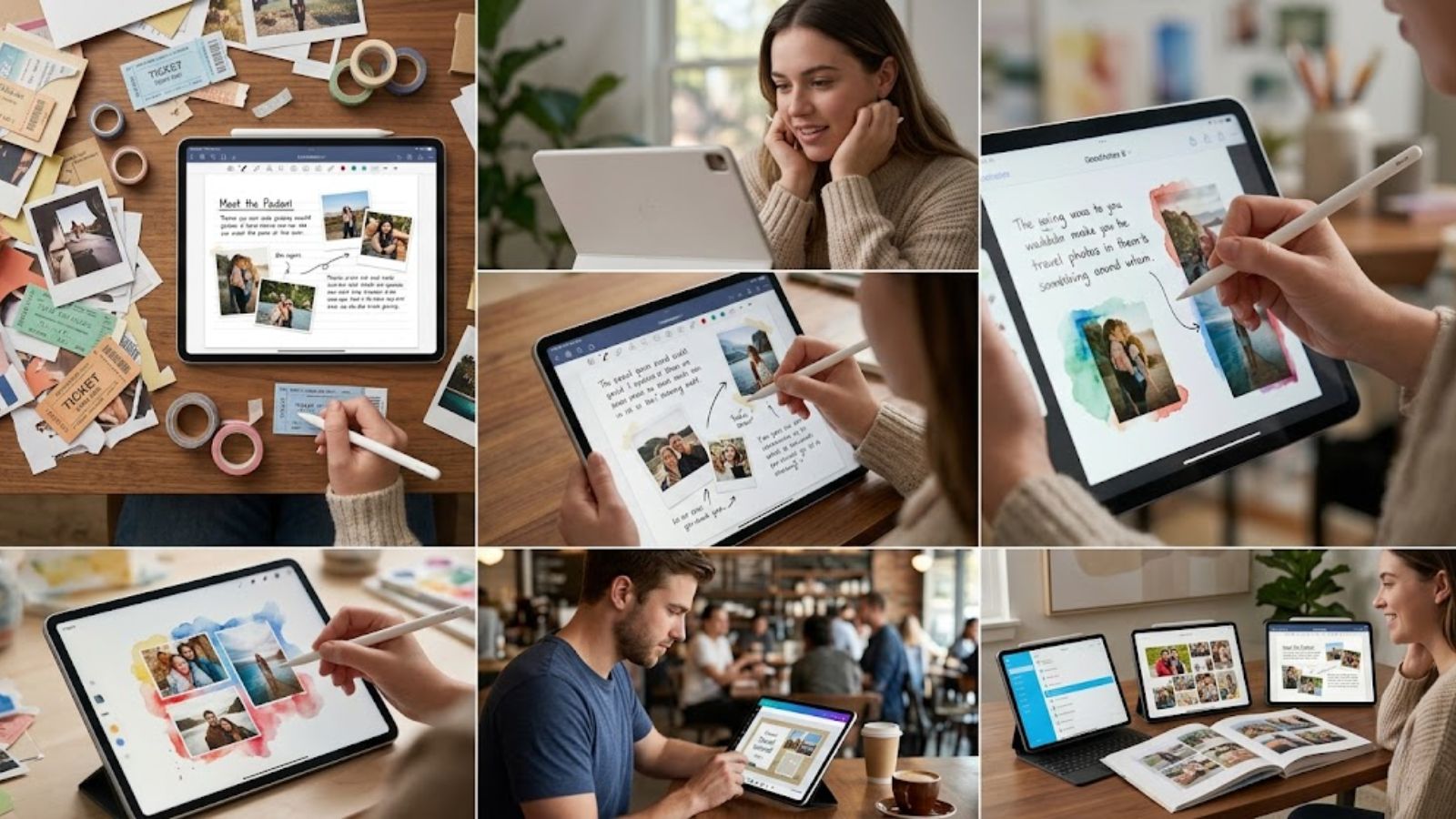
For most iPad users who want the full scrapbook experience — handwriting, layering, freedom, personality — Goodnotes 6 still sits comfortably at the top.
It strikes the best balance between creativity and practicality. You can sketch, journal, paste photos, organize memories, and build pages that genuinely feel handmade instead of algorithmically assembled.
That said, the “best” app really depends on how your brain works.
If you want artistic freedom and tactile creativity, go with Paper by WeTransfer. If speed and polished templates matter more, Canva makes the process almost effortless. And if your goal is preserving daily memories in a clean, searchable timeline, Day One Journal is hard to beat.
Either way, digital scrapbooking finally reached the point where it doesn’t feel like a compromise anymore. In a lot of ways, it’s better.